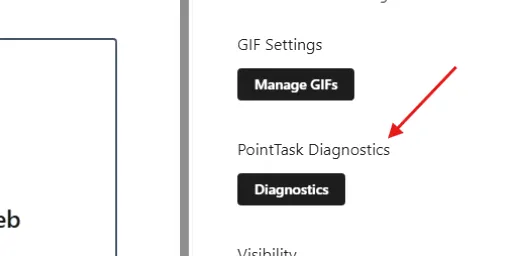
PointTask's Diagnostics panel serves two purposes: verifying that all of the lists and columns it needs are still in place, and repairing them if one gets deleted by accident — you don't have to reinstall the whole app to recover a missing list or column. To open it, click Configure on the web part, then click Diagnostics under PointTask Diagnostics.
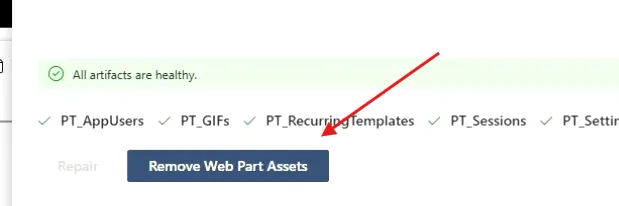
Remove Web Part Assets
The Diagnostics tab lists all of PointTask's required artifacts — PT_AppUsers, PT_GIFs, PT_RecurringTemplates, PT_Sessions, PT_Settings, and more — with a health check. Clicking Remove Web Part Assets removes them in order: lookup fields first, then lists, and finally site columns.
Missing artifacts
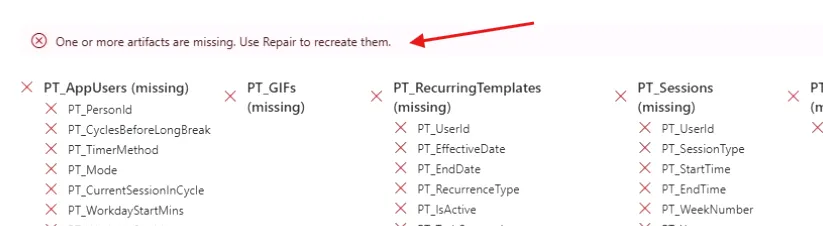
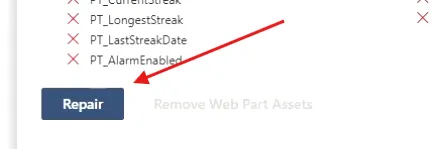
Once removal finishes, every missing list or column shows a red X, and PointTask flags One or more artifacts are missing. Use Repair to recreate them. If only a single column had been deleted, only that column would show as missing.
Repair
Click Repair to recreate every missing list and column. Open Site Contents and refresh — all of PointTask's lists are back.
Uninstalling the web part
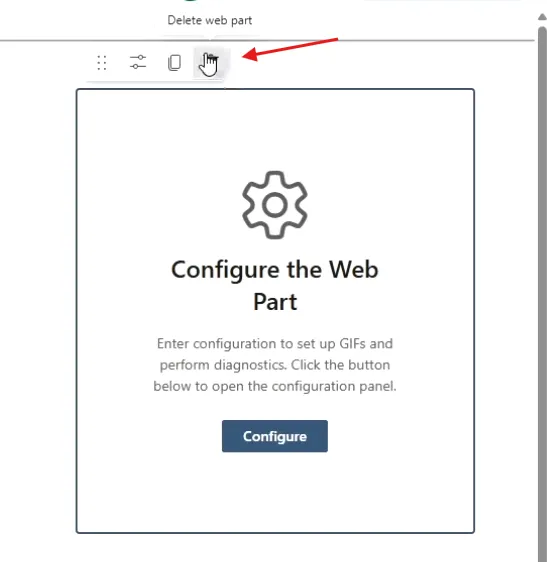
To fully uninstall, don't remove the web part from the page first. Instead, run Remove Web Part Assets again and let it finish removing every lookup field, list, and site column — check Site Contents and refresh to confirm they're all gone. Only then close Diagnostics, delete the web part from the page, and publish your changes.
Remove the app from the site
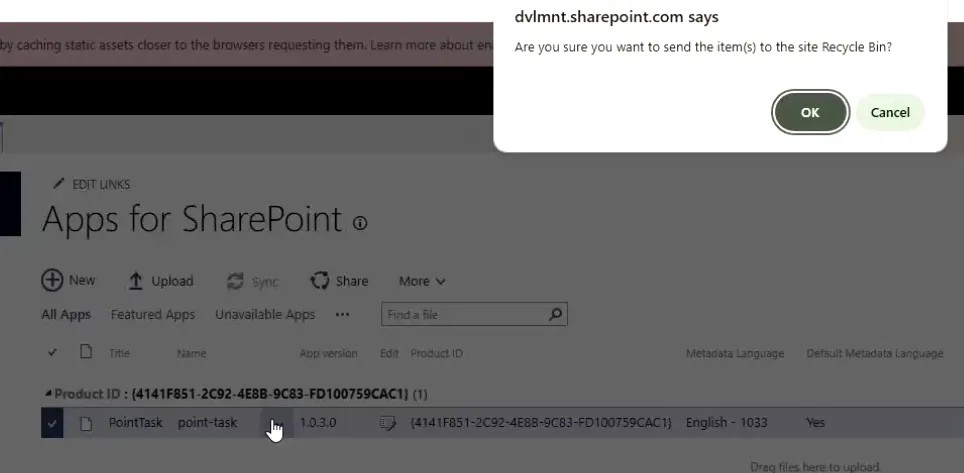
Go to Site Contents → Apps for SharePoint, select the PointTask app's checkbox, and press Delete to send it to the site Recycle Bin. Edit the page again and try adding the web part — it's no longer available to add, confirming the uninstall is complete.