
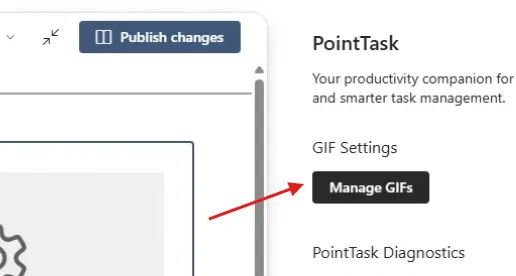
Once PointTask is installed, click Configure on the web part. You'll see two options — Manage GIFs and Run Diagnostics. Click Manage GIFs to open the GIF settings, where you can either pull GIFs from GIPHY using an API key, or upload your own.
Option A: Connect a GIPHY API key
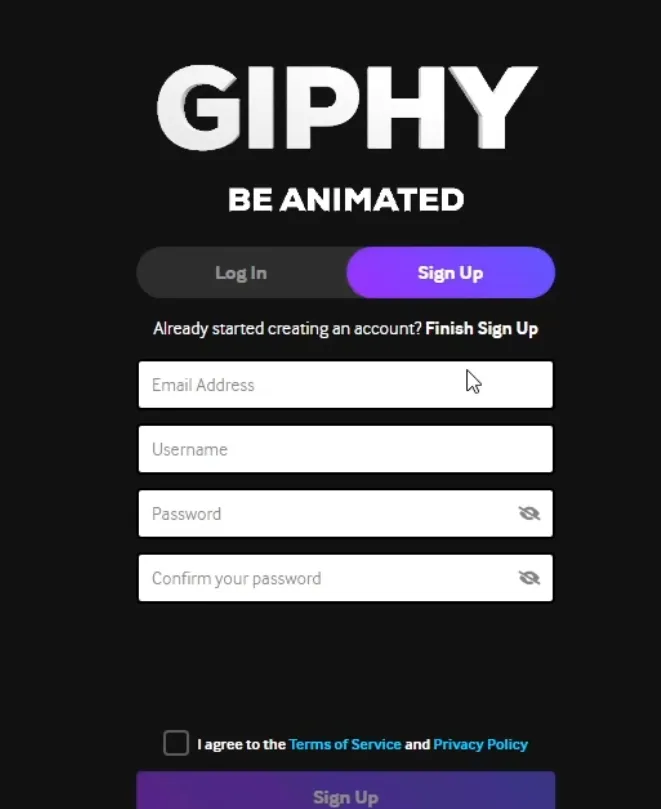
Click the GIPHY Developer Dashboard link and create an account — this is free, and completely optional. You can sign up with Facebook, Apple, or an email address, username, and password. Confirm your password, complete the captcha, and agree to the terms.
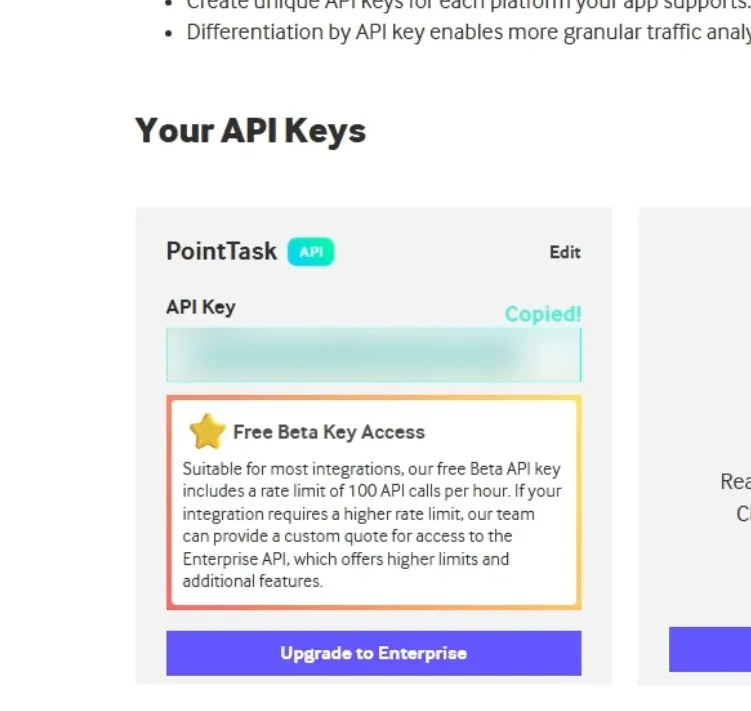
Once your account is verified, open the GIPHY Developer Dashboard again and go to API Explorer to create a key. Select API, name your app, select Web, describe it as a task application, agree to the terms, and create the key. Double-click the key to copy it automatically. Go back to PointTask, paste the key, and save it. You can then pick an area (e.g. Early Finish), search GIPHY directly (e.g. "congrats"), select GIFs, and click Save GIFs.
Option B: Custom upload
If you'd rather not use the GIPHY API, use the Custom Upload tab instead. Download one of the provided GIF packs from the PointTask download page (Join the Beta) — Task Completed, Break Time, Early Finish, or Late Finish.
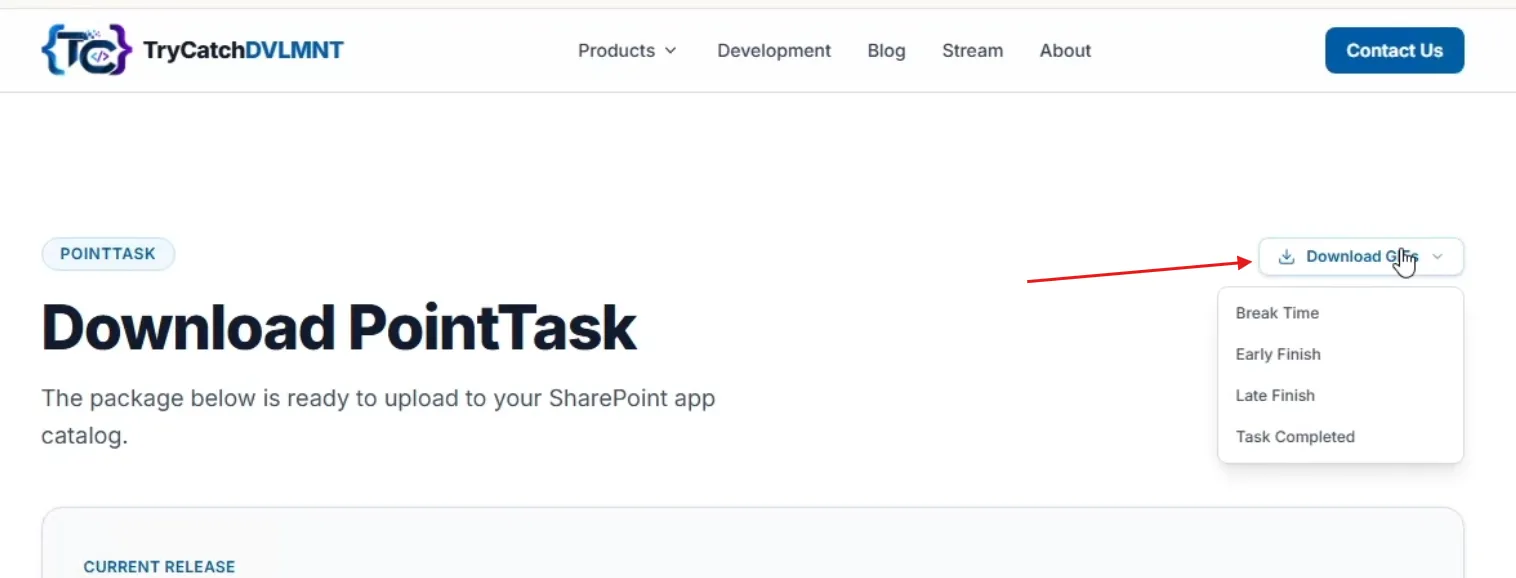
Extract the downloaded zip file.
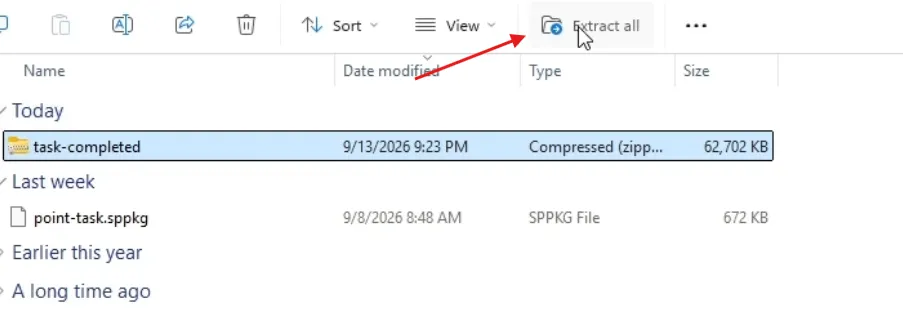
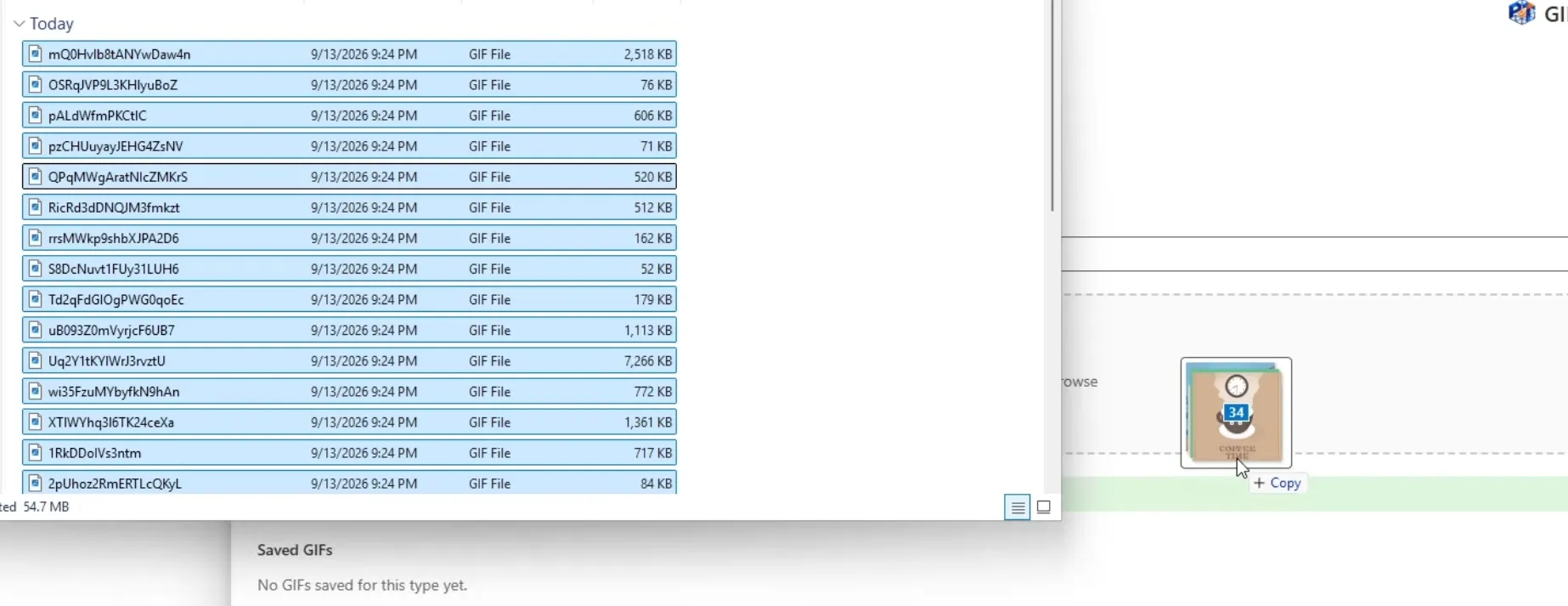
Select all the extracted files and drag and drop them into the matching tab to upload. Once they finish, they'll show up under Saved GIFs. Repeat for each category you want to fill in.
Removing GIFs
If you don't want to keep a GIF, hover over it and click the delete icon that appears.