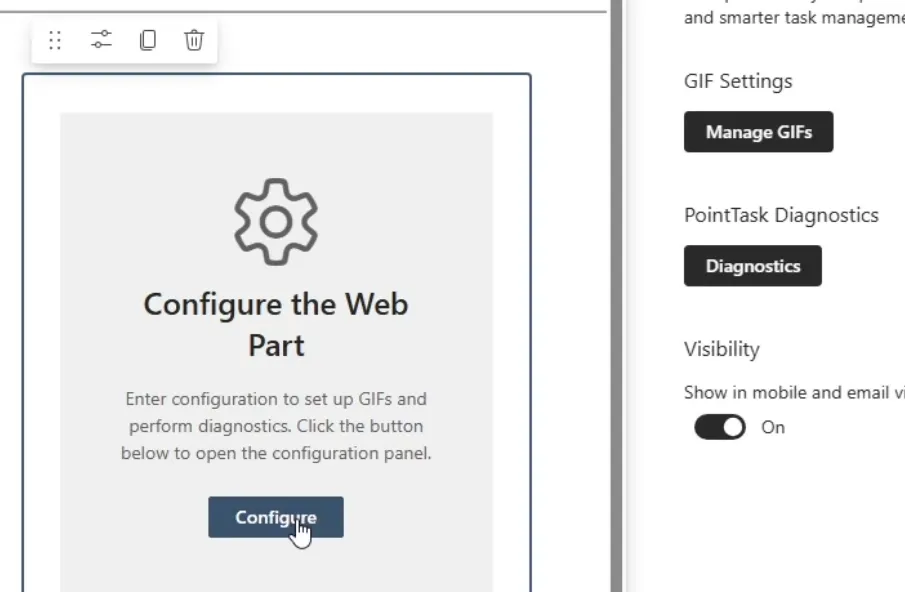
This guide covers downloading PointTask and adding it to a SharePoint site.
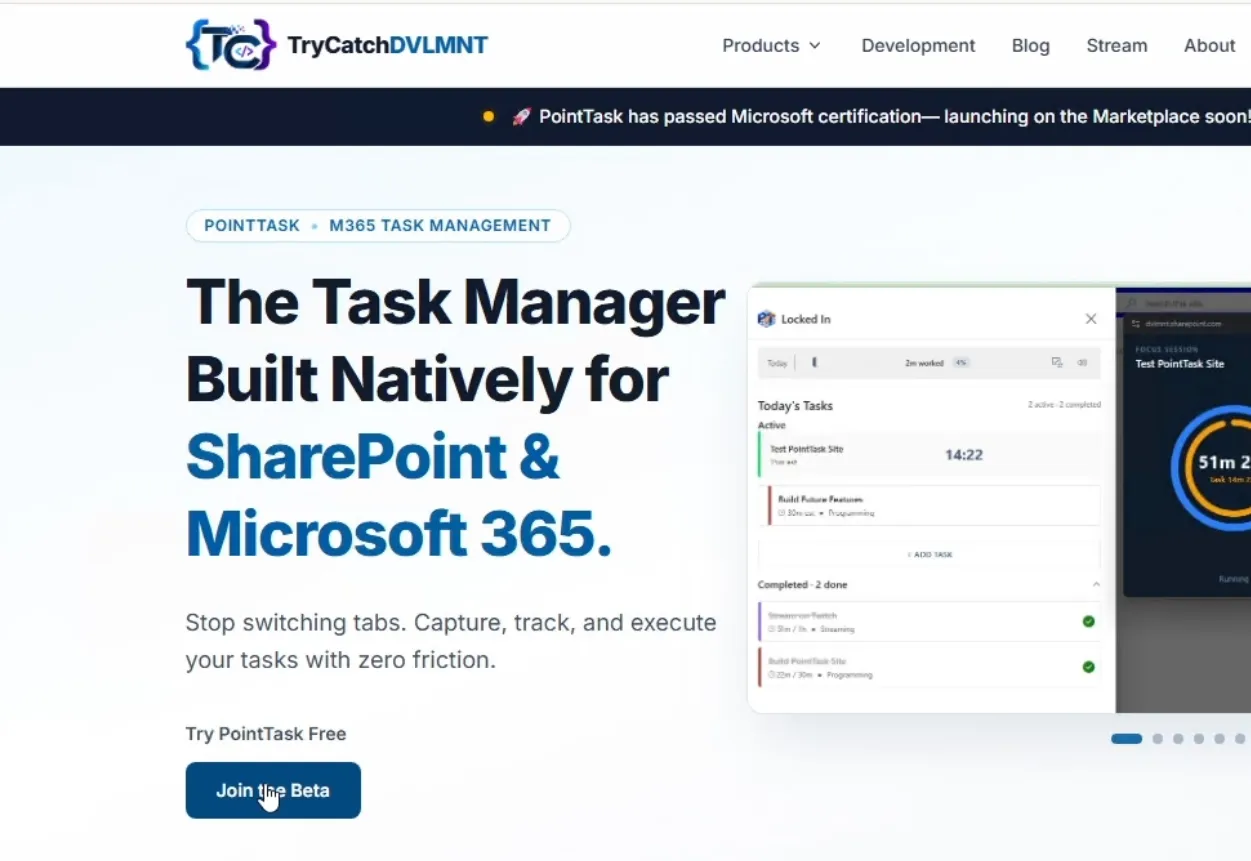
Go to the TryCatch Development site, open the Products dropdown, and find PointTask. Click Join the Beta to download the package.
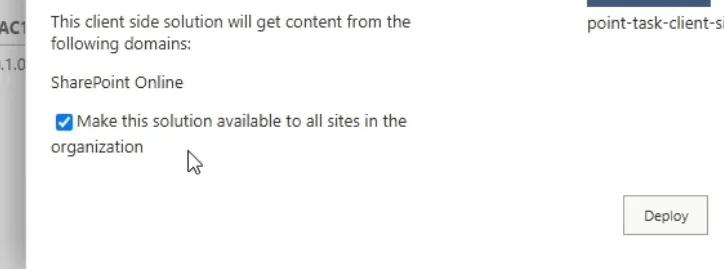
Once downloaded, go to your app catalog and drag and drop the package file in. When the pop-up appears, check Make this solution available to all sites in the organization, then select Deploy.
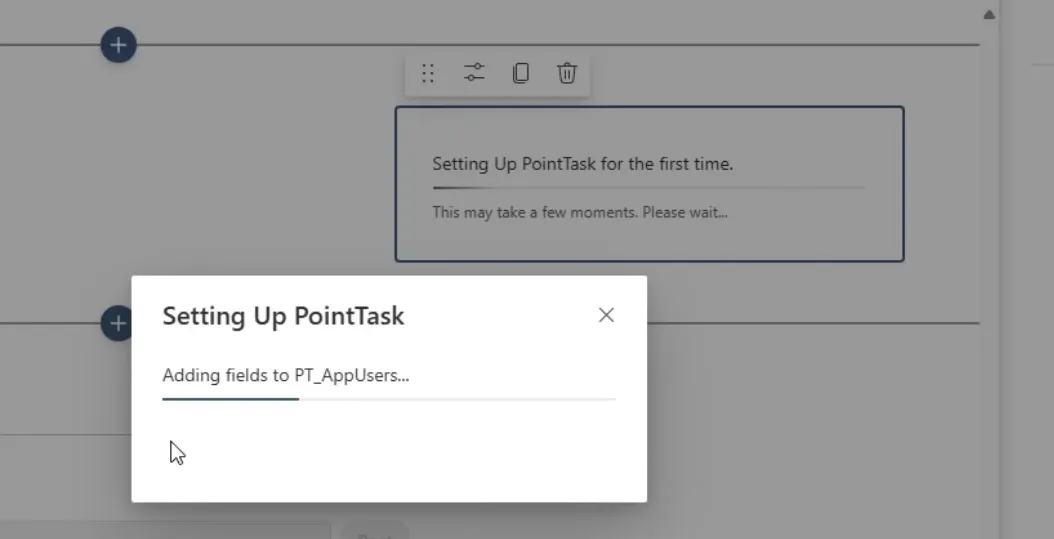
Go to the page where you want the web part to appear, edit the page, and add the web part. As it loads, PointTask creates the lists and fields it needs — this provisioning only happens once.
Once it's set up, you can add the web part to other pages in the same site collection without repeating this step. Adding it to a different site collection runs provisioning again. When you're ready, click Configuration to start configuring PointTask.