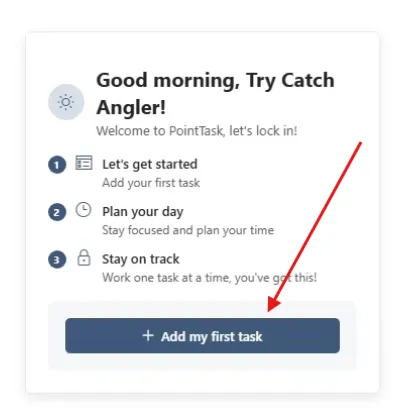
The first time you open PointTask, you'll see a welcome card walking you through three steps: add your first task, plan your day, and stay on track one task at a time. Click Add my first task to open the task form.
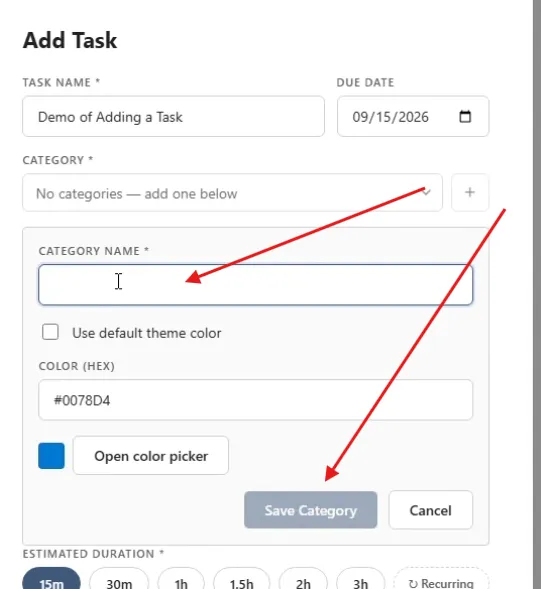
Create a category
Give the task a name and, optionally, a due date for a reminder. Every task needs a category, and the first time you'll have none yet — enter a category name, then either check Use default theme color to match your SharePoint site's theme, or click Open color picker to choose your own. Click Save Category and it's ready to use.
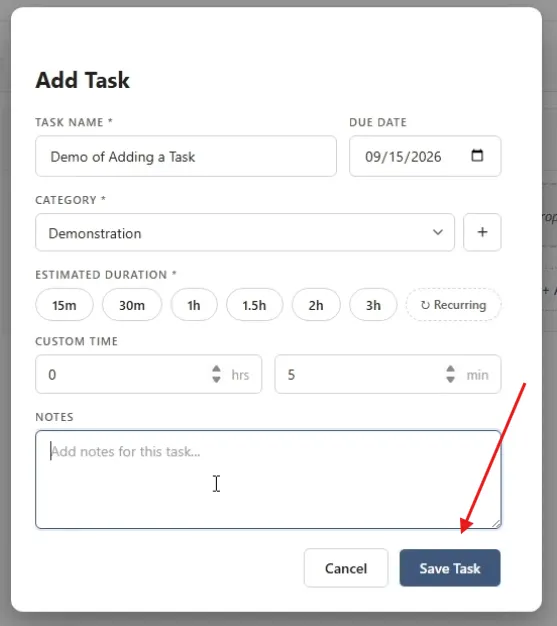
Set the time and save
Pick an estimated duration using one of the preset pills (15m, 30m, 1h, and so on), or enter a custom time in hours and minutes. Notes are optional — add any context you want, then click Save Task.
Backlog, This Week, and inline adding
Tasks can also go straight into the Backlog or This Week columns with their own due dates and categories. Once you have at least two categories, each column gets an inline + Add Task row — type a task name, set its duration and category inline, and press Enter to save without opening the full form.
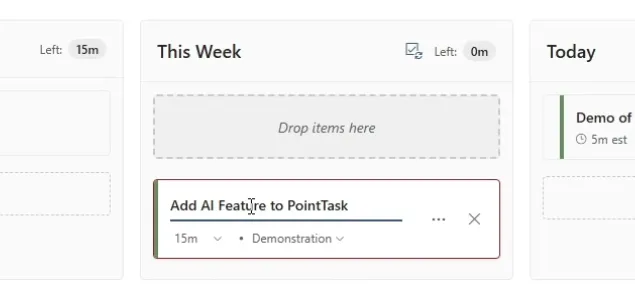
Drag and drop
Hover over the left edge of any task card to grab it, then drag it between columns — for example, moving a task from This Week into Today when you're ready to work on it.
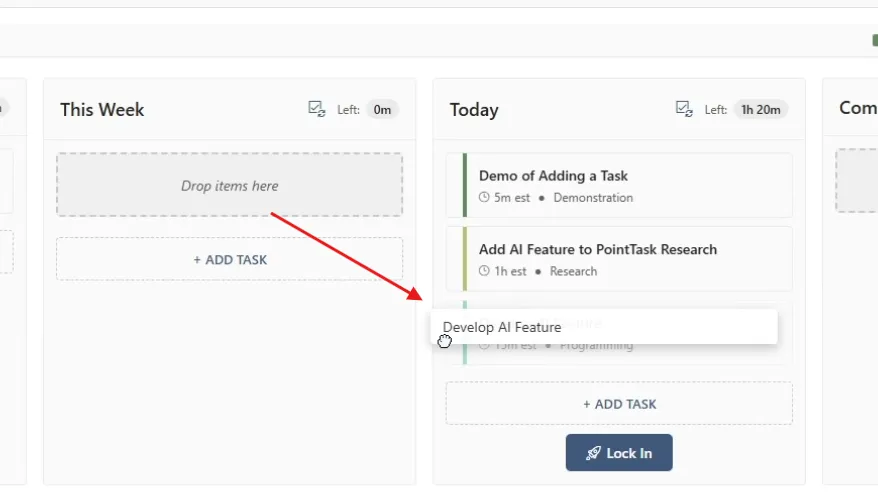
Lock In
Once your tasks for the day are lined up, click Lock In to start focusing. This opens a picture-in-picture timer showing today's active and completed tasks.
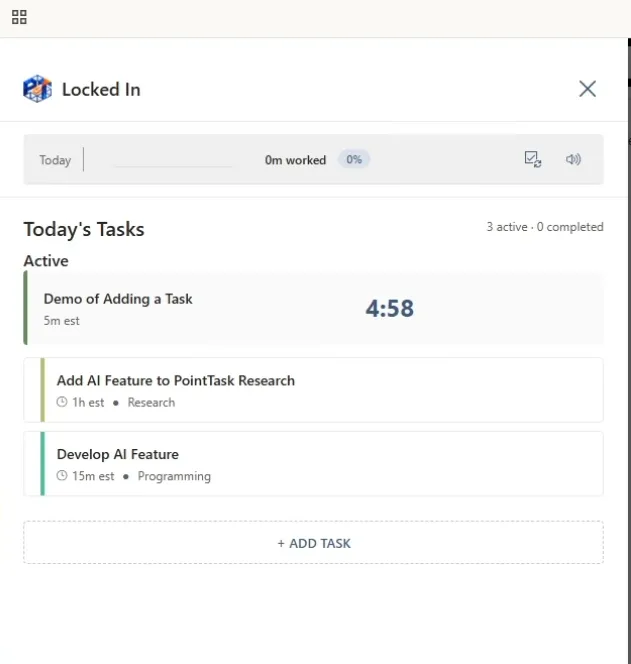
The floating focus timer
The Lock In overlay stays on top of other windows, so you can open Settings, browse other tabs, or work elsewhere while keeping your focus and task timers visible.
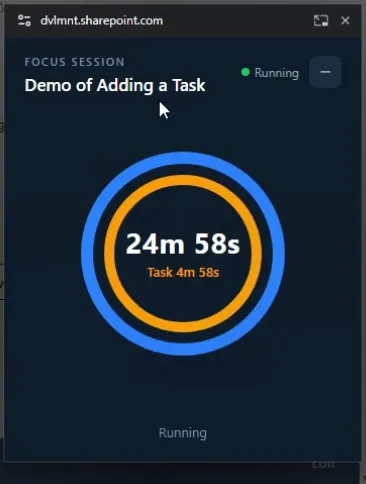
Minimize it
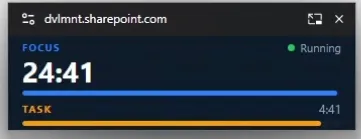
Need less screen real estate? Collapse the overlay into a compact bar that still shows your running Focus and Task timers.
Reopen the timer
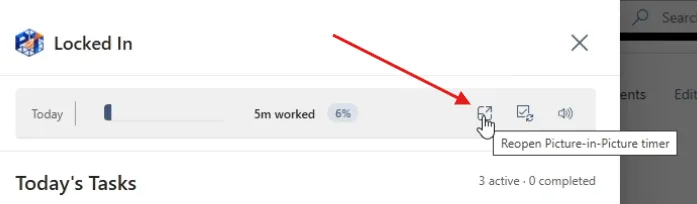
If the picture-in-picture window gets closed, click the Reopen Picture-in-Picture timer icon on the Locked In panel to bring it back without losing your progress.
Sound alerts
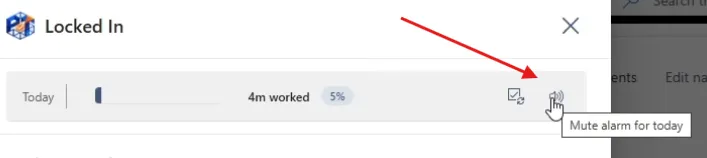
By default, PointTask plays a sound when a task's time ends or a break starts. Click the alarm icon to mute the alarm for today if you'd rather work without it.
Completing a task
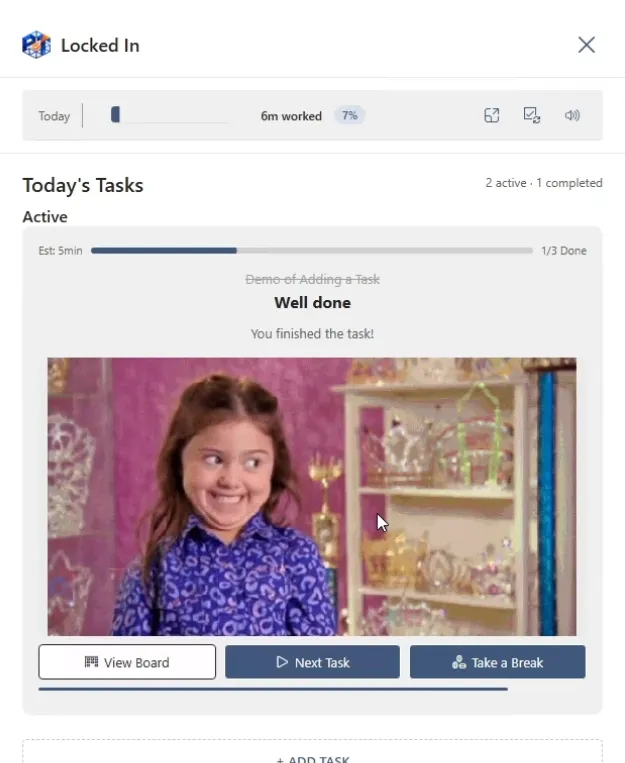
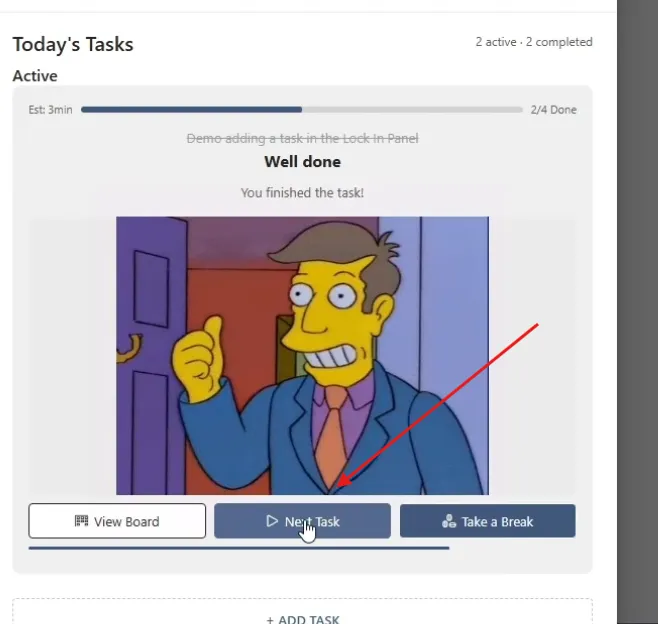
Mark a task complete and PointTask celebrates with a quick reward GIF. From there you can View Board (which resets your timer — not recommended if you want to keep it running), move on with Next Task, or Take a Break.
Move to the next task
Click Next Task to start the timer on your next queued task. Your overall focus session timer keeps counting down while each task gets its own fresh timer.
Add or switch tasks without leaving Lock In
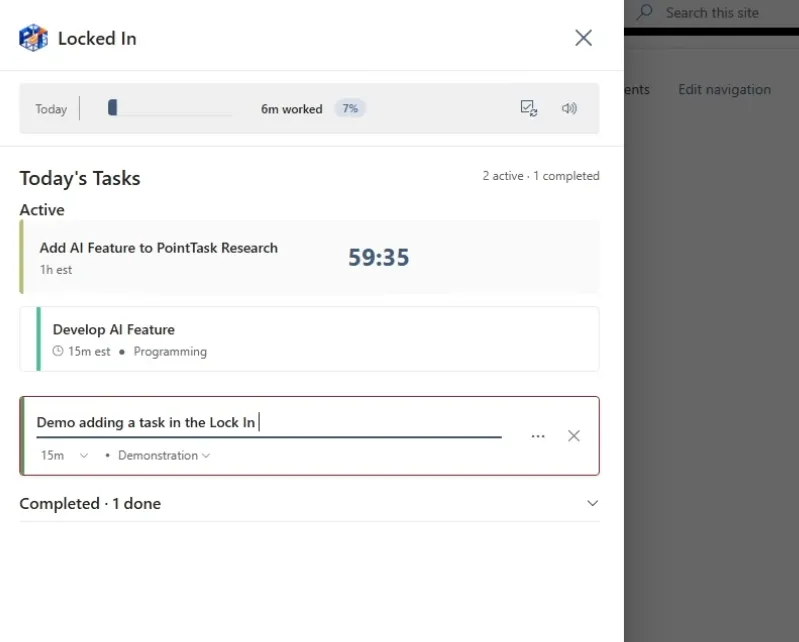
You can add a new task right from the Lock In panel — set its name, duration, and category just like the full form. To switch focus to a specific task instead of the next queued one, click its play button; your overall focus timer keeps running while the task timer switches over.
Take a break
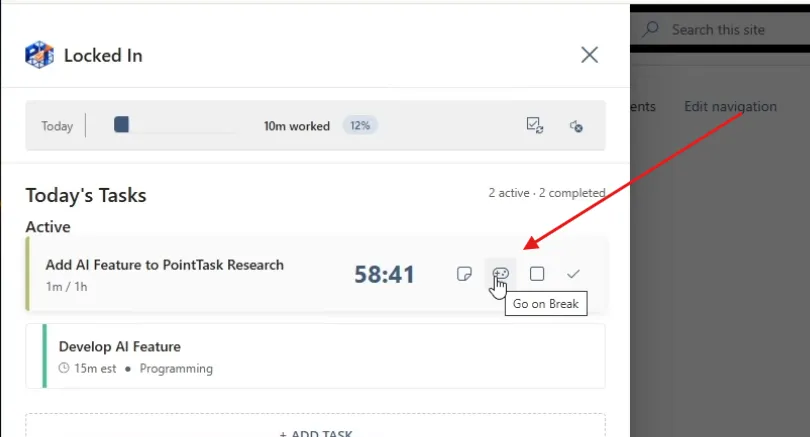
Click Go on Break to start a break session — it runs in its own overlay, so you can step away and still get an alert when the break ends. You can end a break early at any time.
Track today's progress
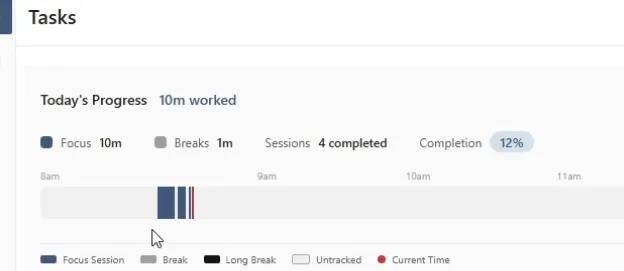
Back on the board, expand Today's Progress to see how much you've worked, your focus and break time, completed sessions, and overall completion percentage for the day.
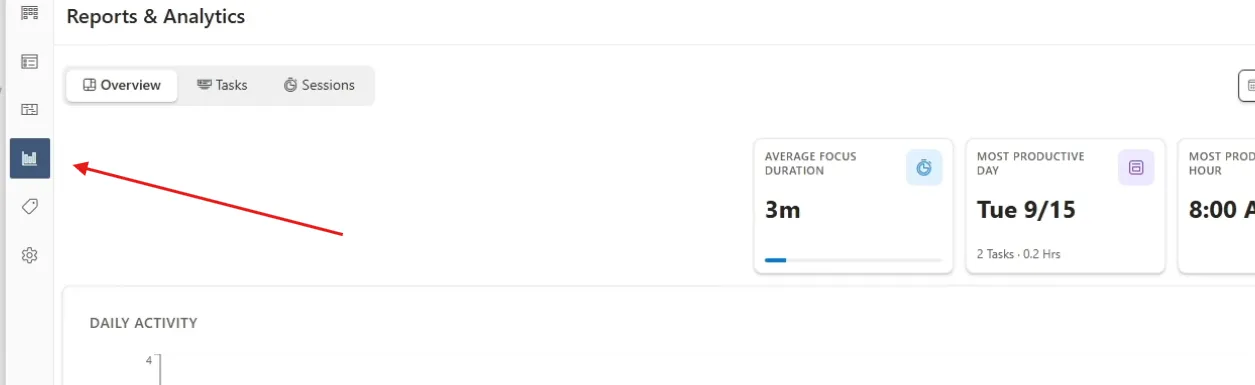
Reports & Analytics
The Reports tab breaks down tasks completed, hours worked, cycles, breaks, current streak, most productive day and hour, average focus duration, and a category breakdown — all updating as you keep using PointTask.
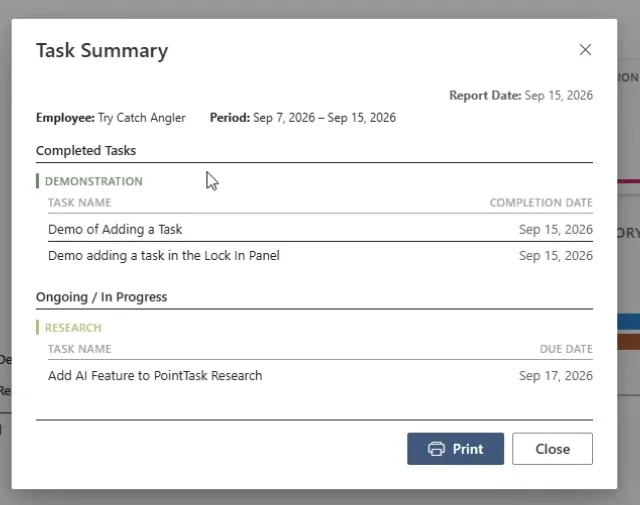
Print a task summary
Need a summary for a supervisor? Set a date range (for example, the last 7 days), open Task Summary, and PointTask lists your completed tasks with completion dates plus anything still ongoing. Click Print to generate a report you can hand off.
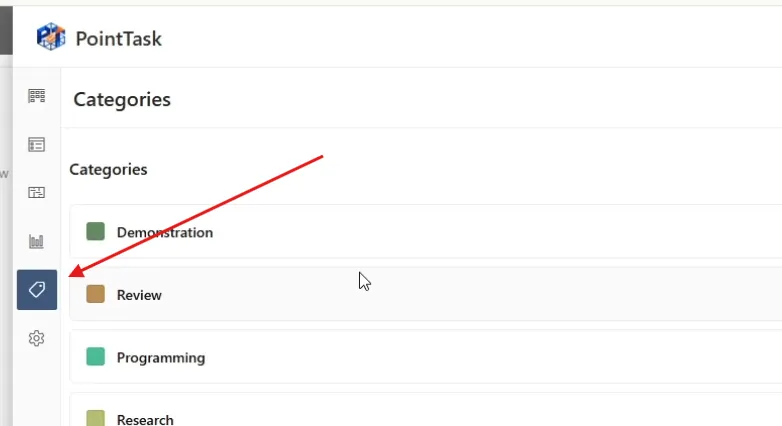
Manage categories
Open the Categories section to rename a category or change its color at any time — updates apply everywhere the category appears, including your Kanban board.
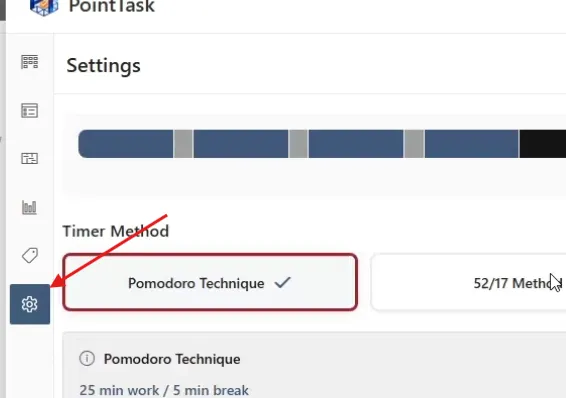
Adjust settings
The Settings page holds the same form from initial setup — change your timer method, session and break durations, cycle count, and work schedule, then click Save Changes.
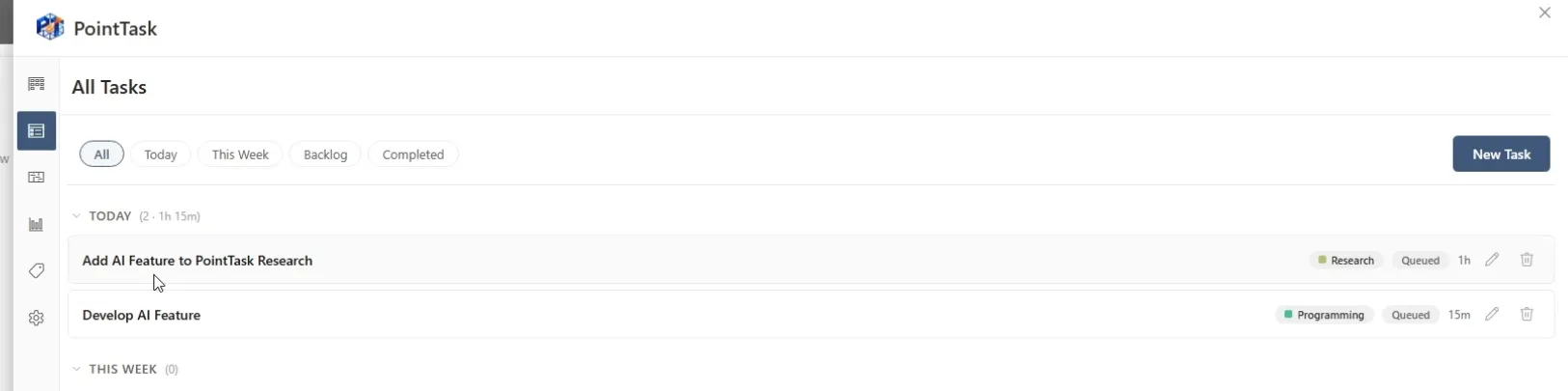
Tasks list view
Prefer a list over the Kanban board? The Tasks section shows every task in one place, filterable by Today, This Week, Backlog, or Completed.
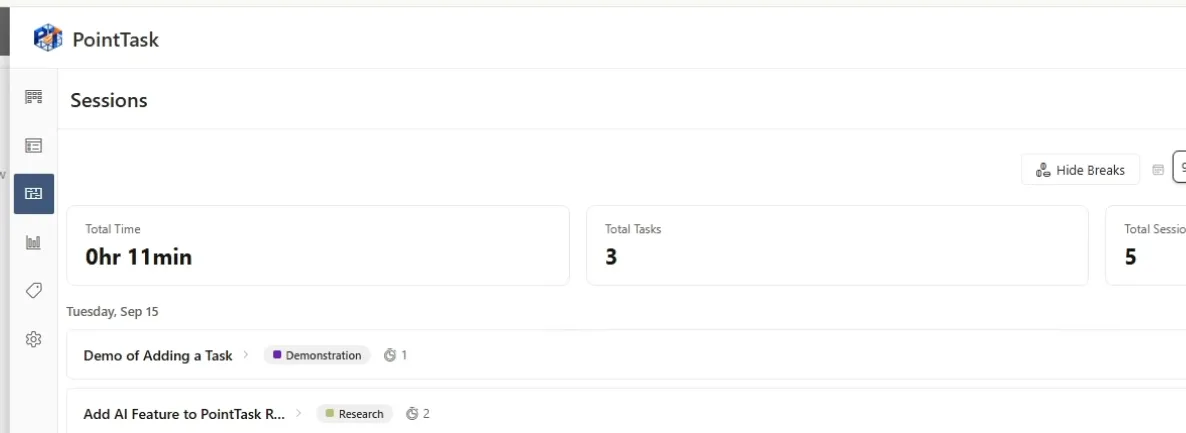
Sessions list view
The Sessions section gives a summarized list of your focus sessions. If you need to log something manually, use Add a Session to attach a session to a specific task.
Feedback & feature requests
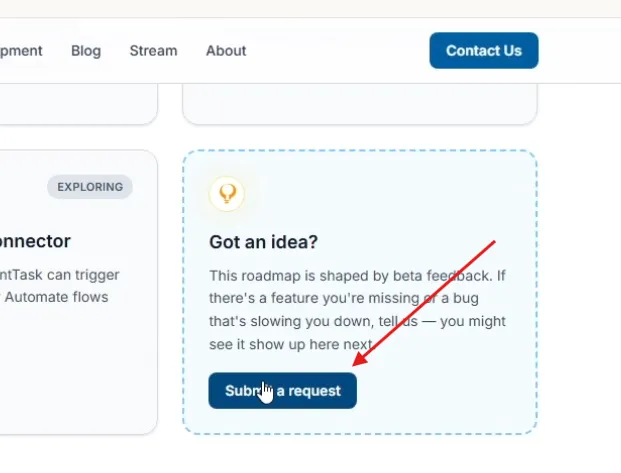
Have an idea or found a bug? Visit trycatchdevelopment.com, go to Products → PointTask, and click Submit a request — the roadmap is shaped by beta feedback.