
This guide covers adding images to the Image Hotspots web part and creating clickable hotspot regions.
Open the canvas
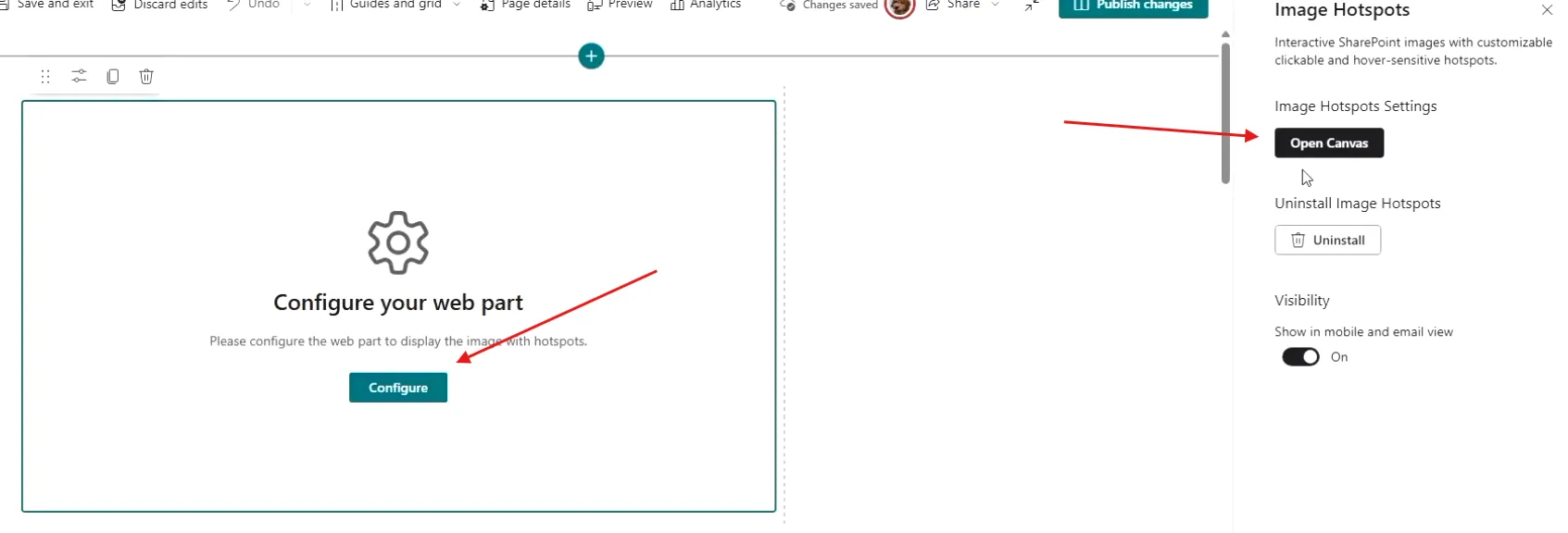
On the page with the web part, click Configure, then select Open Canvas.
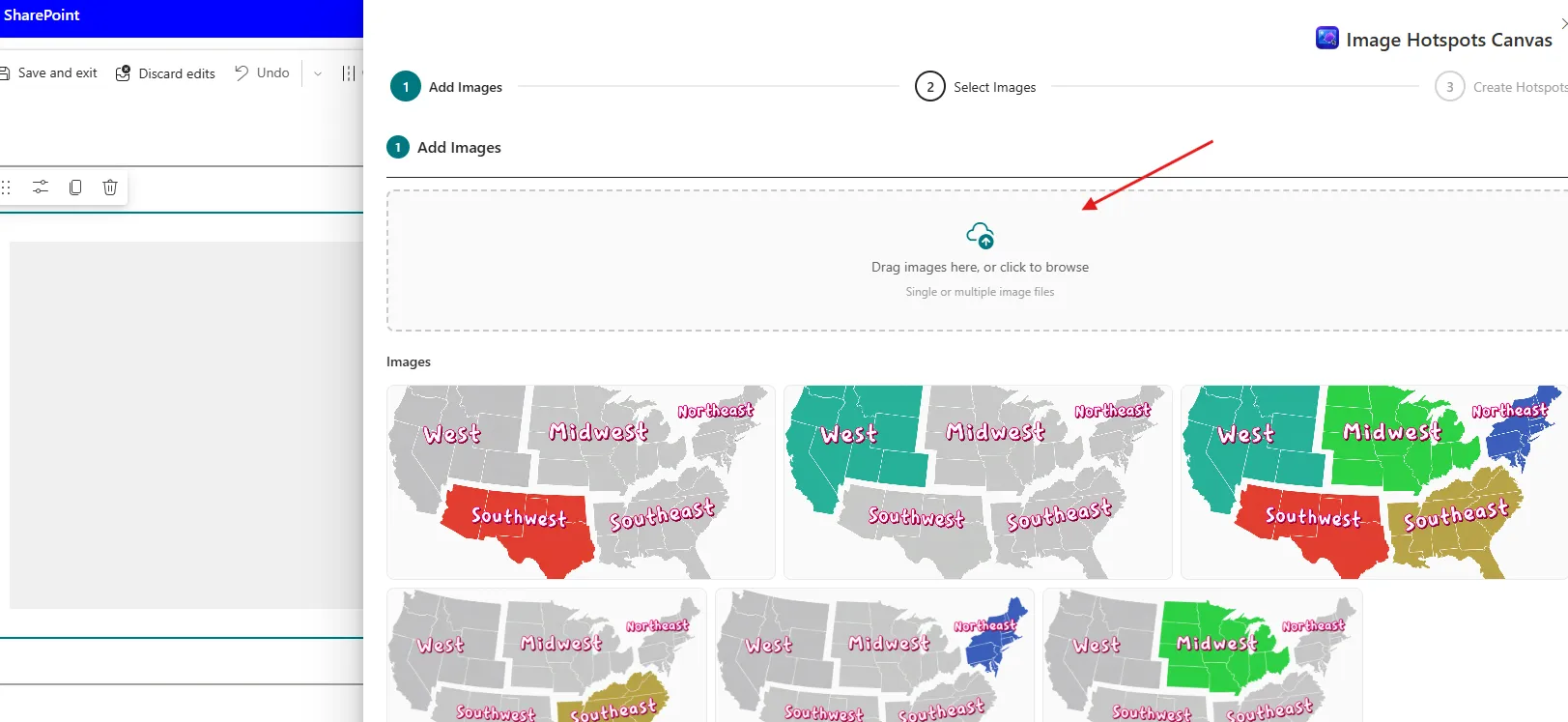
Add images
Click the upload control to browse for images, or drag and drop them onto it. If images were already added before, you can pick from those instead.
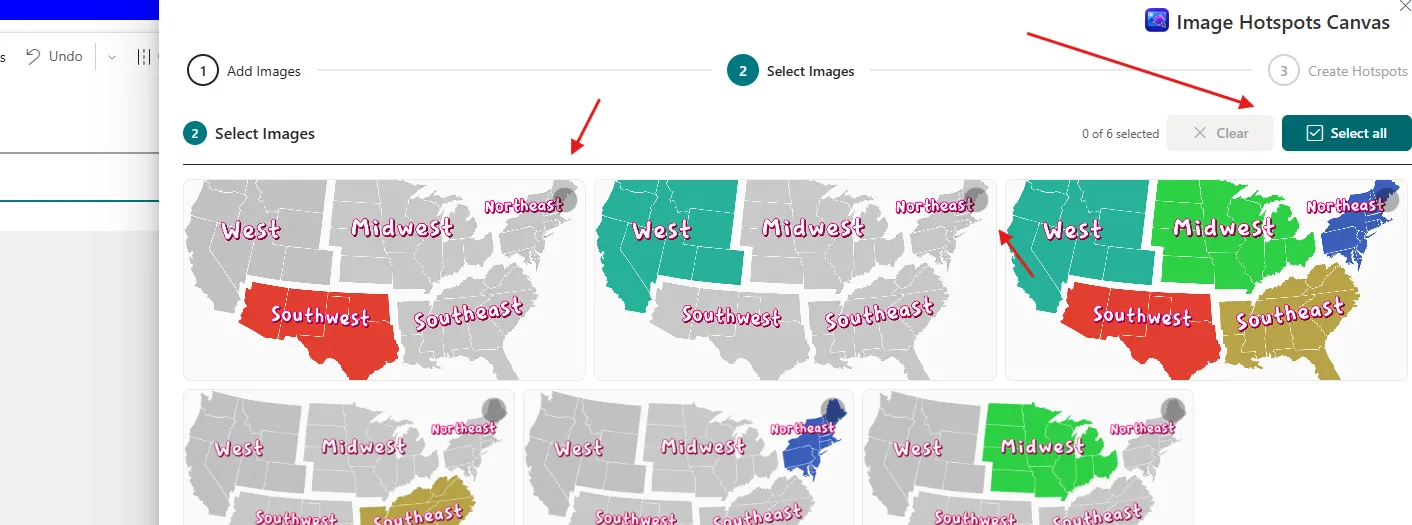
Select images
Any images you upload are selected automatically. Go to Select Images (click the step or Next) to confirm them, then click Next to open the canvas.
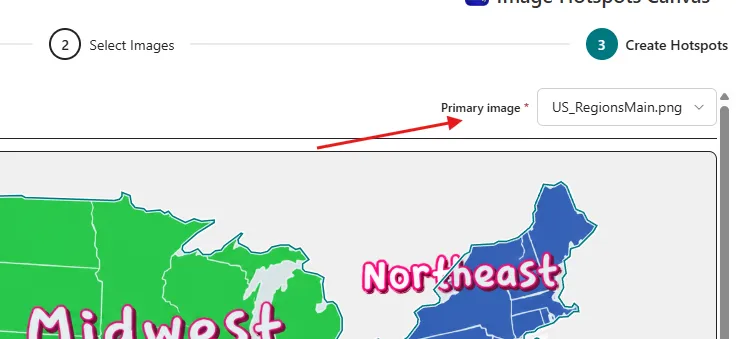
Choose the primary image
In Create Hotspots, pick the Primary image — the base image your hotspots are drawn on.
Map your regions
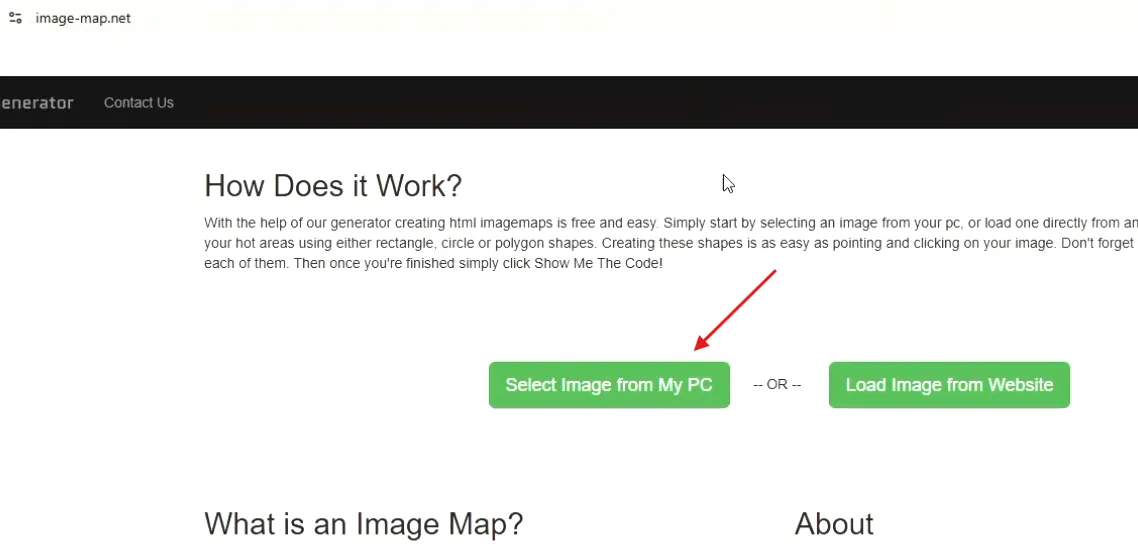
Hotspot coordinates are pixel values on the original image. You can get them with the free GIMP app or at image-map.net. On image-map.net, load your image, pick a shape (use Polygon for areas that aren't an exact rectangle or circle), and outline each region.
Copy the coordinates
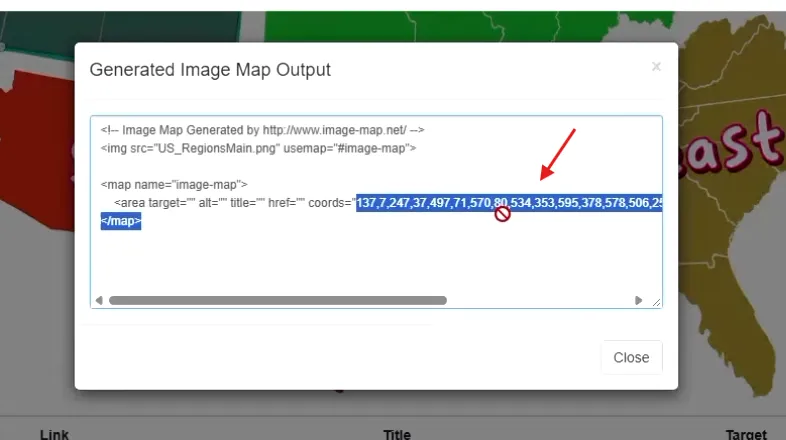
Once each region is outlined, click Show me the code and copy the coordinates for each area. Paste them into the hotspot's Coordinates field. If you already have a set exported from another canvas, click Import to load them all at once.
Configure each hotspot
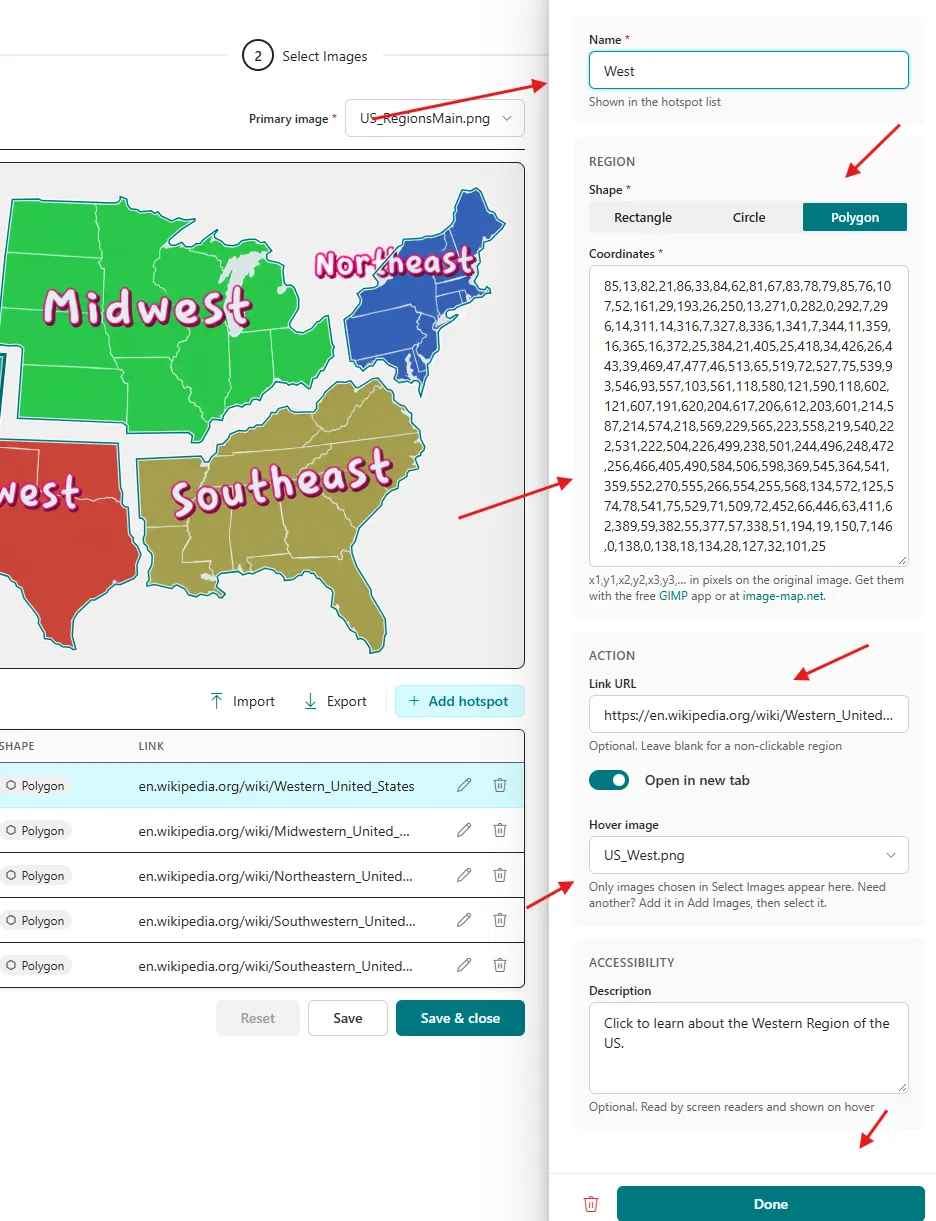
Click Add hotspot (or the edit icon on an existing one) and set the Name, Shape, and Coordinates. Under Action, add an optional Link URL and choose whether it opens in a new tab. Pick a Hover image to swap in when users hover the region — for example, a version of the map with the other regions grayed out. The Description is shown as a tooltip and read by screen readers.
Save
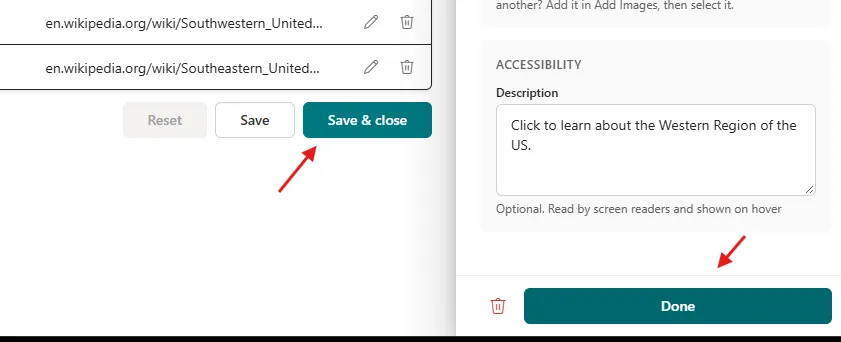
Click Done to save the hotspot, then Save & close to close the canvas.
Publish
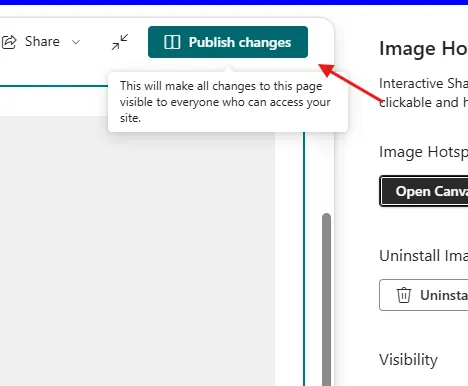
Publish the page. Hovering a region now swaps in its hover image and shows the tooltip, and clicking it goes to the link you set.
Reuse on another site
Once it's set up, you can open the canvas and click Export to reuse your hotspots on a different site. Keep in mind you'll need to add the same images on the target site before importing.