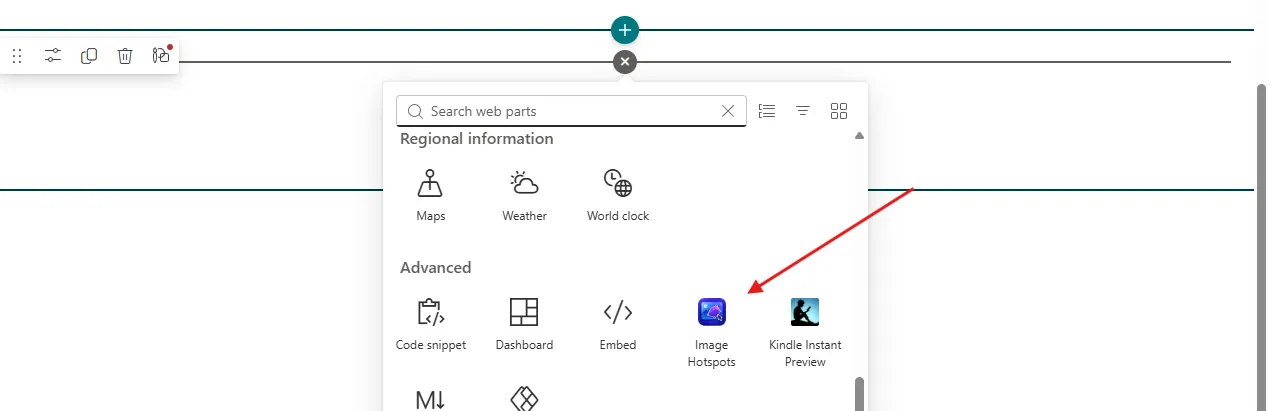
This guide covers downloading Image Hotspots and adding it to a SharePoint site.
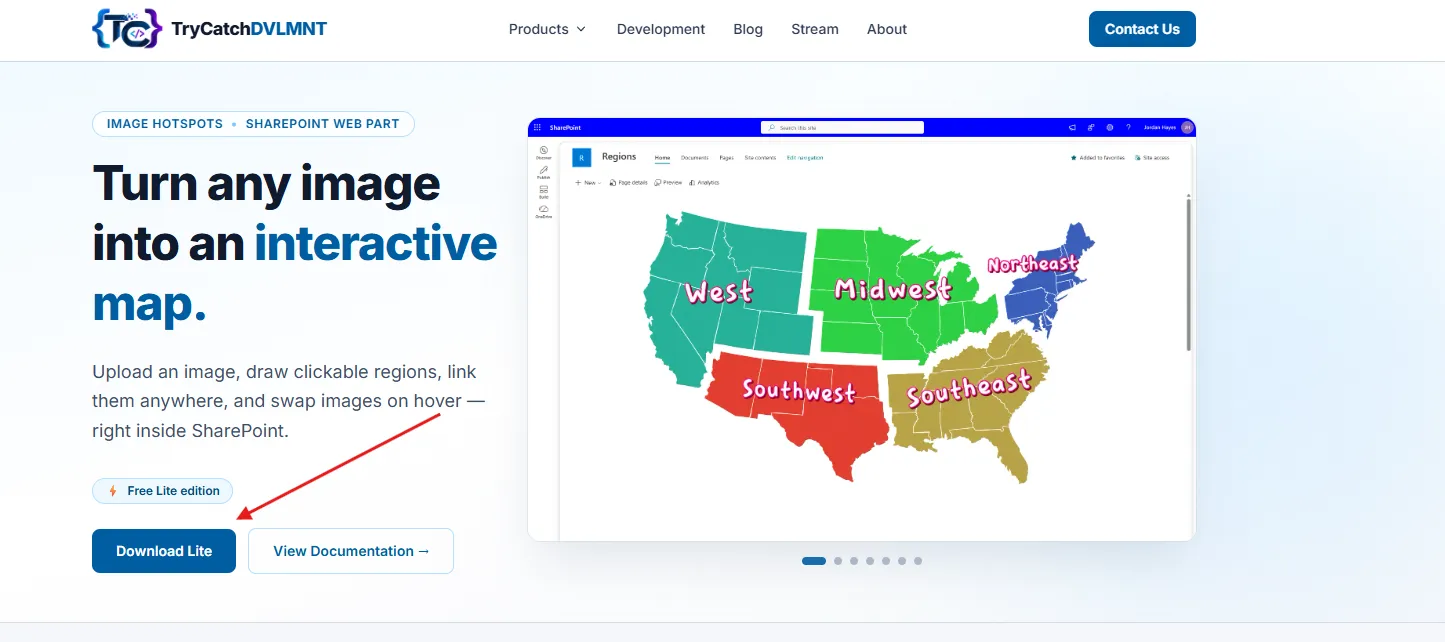
Go to the TryCatch Development site, open the Products dropdown, and select Image Hotspots. On the Image Hotspots page, select Download Lite to download the package.
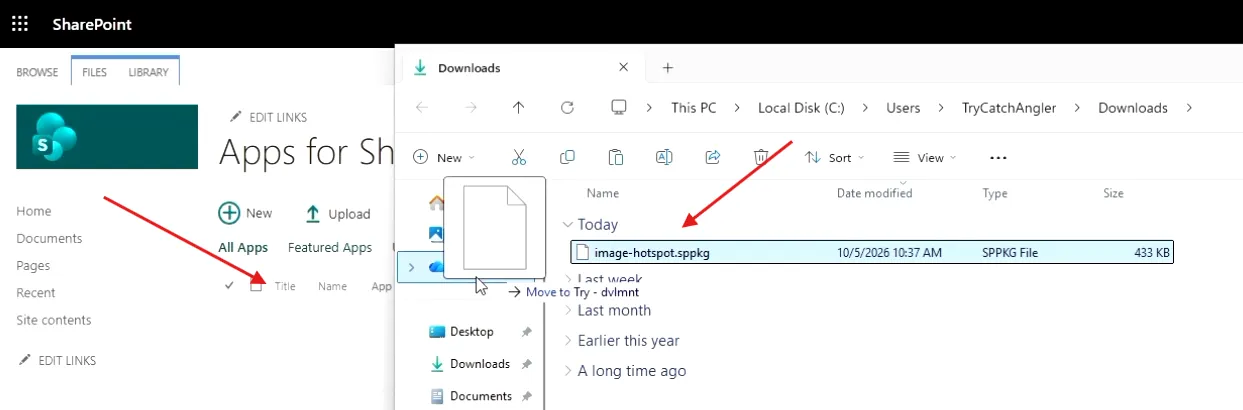
Once downloaded, go to the SharePoint site you want to install it on and open Site contents. Go to the app catalog for the site collection (or the tenant app catalog if you're installing tenant-wide), then drag and drop the downloaded package file in.
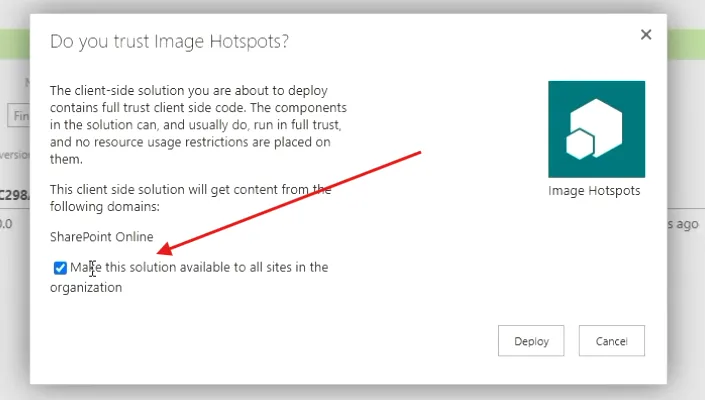
When the pop-up appears, check Make this solution available to all sites in the organization, then select Deploy.
Once it's installed, go to the page where you want the web part to appear and select Edit. Choose the section you want it in, add the Image Hotspots web part, and configure it from there.