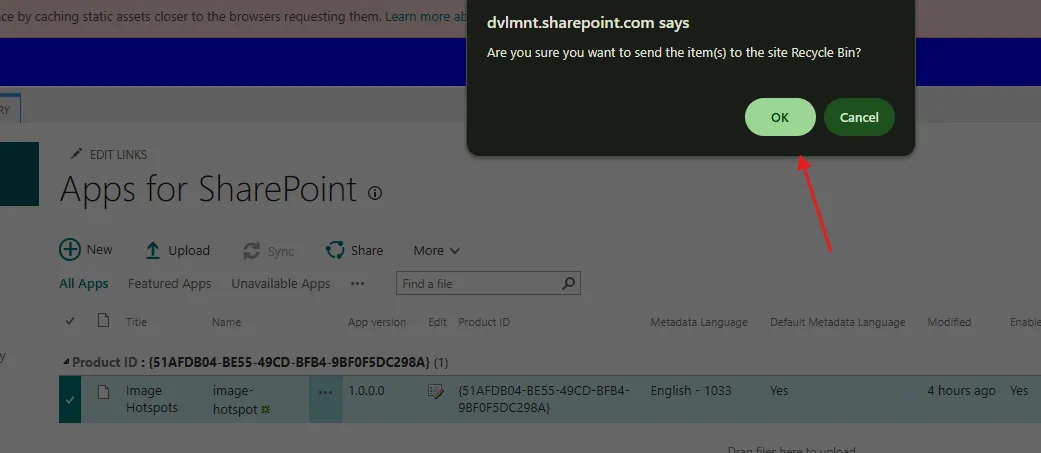
This guide covers removing Image Hotspots and its image library from a SharePoint site.
Edit the page with the web part, click Configure, then click Uninstall.
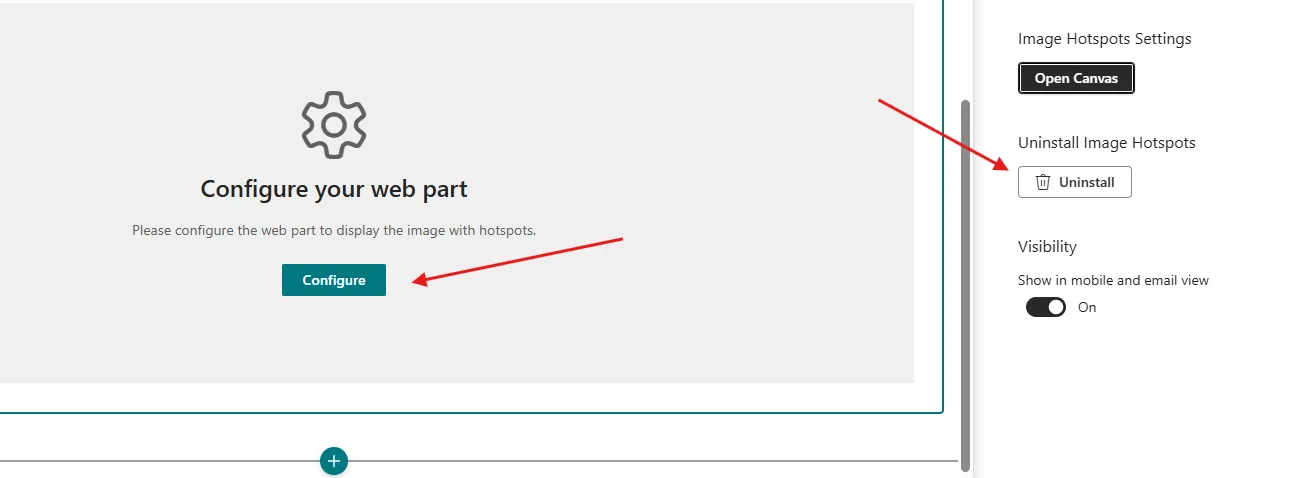
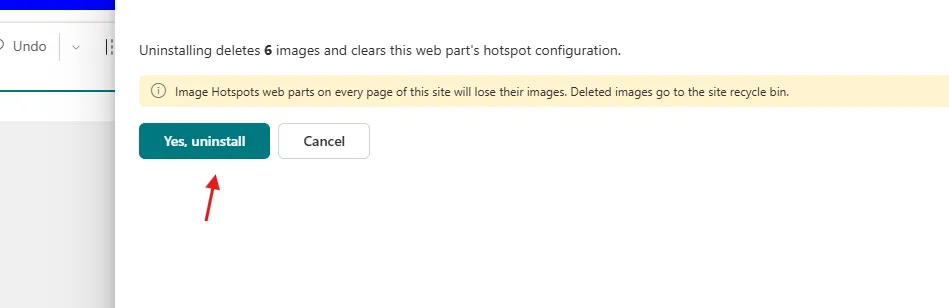
The panel shows how many images are stored in the web part's image library. Uninstalling deletes them and clears the hotspot configuration for Image Hotspots web parts on every page of the site. If you want to keep the images, export, download, or move them to a different library first.

Click Uninstall, then Yes, uninstall to confirm. This removes the associated image library. Deleted images go to the site recycle bin.
Delete the web part from the page and publish your changes. In Site contents, the image library is now gone. Finally, go to the app catalog, select Image Hotspots, press Delete on your keyboard, and click OK to remove it.